

Home Internet
Fiber · Cable · DSL · Fixed wireless · 5G
- Internet connection down or unreliable?
- Want to understand the technology your provider uses?
- Comparing speed, reliability and service plans?
- Choosing suitable equipment and internet access?

ONOCRA HOME INTERNET & WI-FI HUB
Focused coverageSelected Brands
 United States
 United Kingdom
 Germany
Our guides and recommendations are focused on these countries. Availability, pricing and features may vary by region.

 NETGEAR
 ASUS
ASUS Linksys
 eero
eero Google Nest
 D-Link
 FRITZ!
START HERE
Describe an internet, router, coverage, speed or network safety problem.
These links open related YouTube searches; they are not presented as original ONOCRA videos.
EXPLORE YOUR CONNECTIONS
Choose Home Internet or Home Wi-Fi to find the right explanation, troubleshooting steps or buying guidance.
Fiber · Cable · DSL · Fixed wireless · 5G

Routers · Mesh · Wi-Fi 6/6E/7 · Home coverage
QUICK HELP · PRACTICAL ANSWERS
Choose Internet or Wi-Fi, then open a short and practical answer.
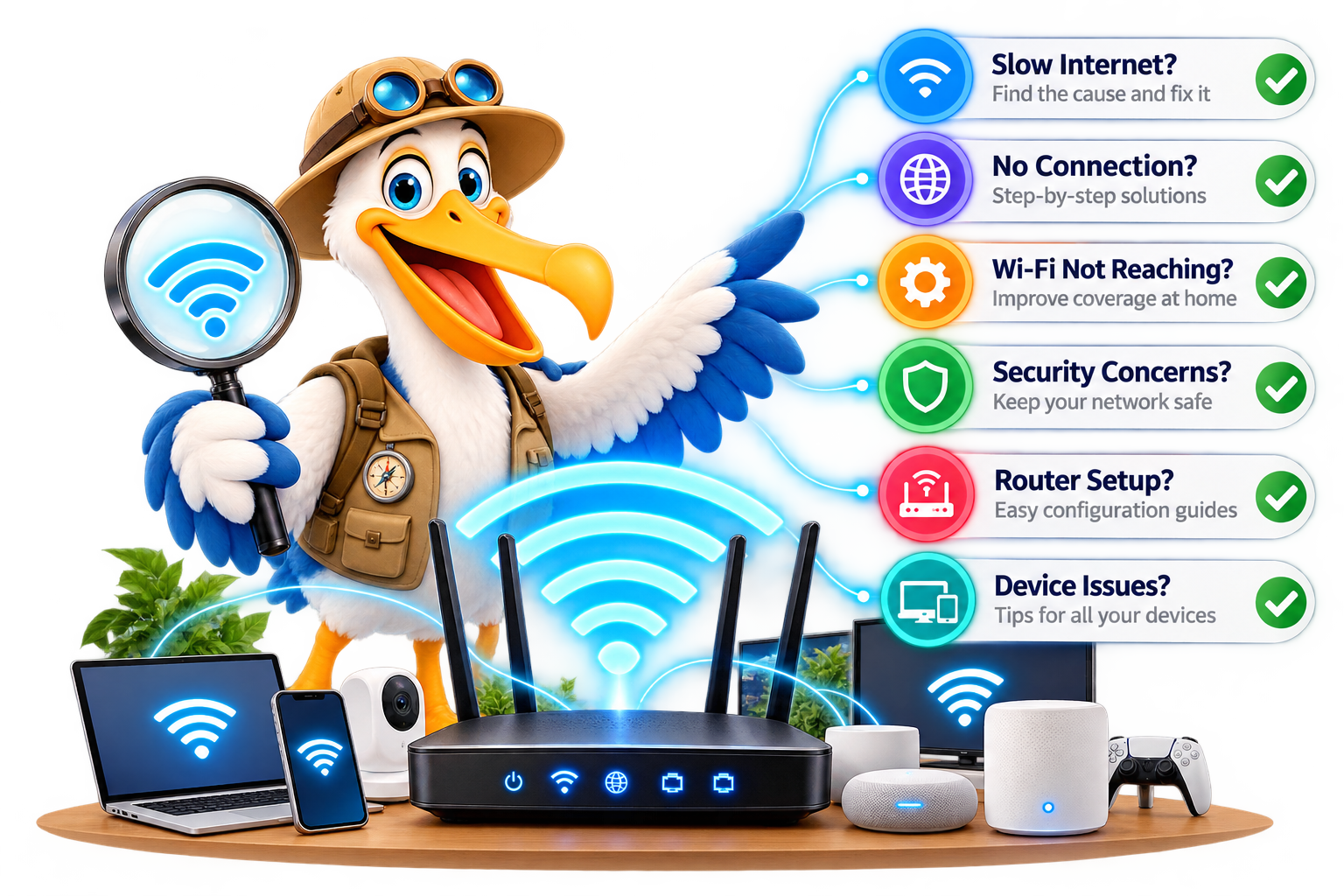
Check the modem or optical network terminal lights and whether other devices also lost access. If there is an outage, check your ISP status using mobile data. Restart equipment only after noting any error indicators.
Explore this topic →Test more than one device. If possible, connect a laptop directly by Ethernet to the router. Working Ethernet with failing wireless often points to Wi-Fi; both failing may indicate the modem, cable or provider.
Explore this topic →Compare address-level availability, upload and download speed, typical latency, reliability, data caps, installation fees and total contract cost. Wireless performance depends on local signal and congestion.
Explore this topic →Test near the router and, where possible, by Ethernet. Compare against the plan’s advertised typical speed; check time-of-day congestion and whether older devices or Wi-Fi links are the bottleneck.
Explore this topic →Power, online, upstream and downstream patterns vary by model. Use the official guide for your modem before deciding whether a blinking light means startup, synchronization or a fault.
Explore this topic →Compare regular price after introductory discounts, upload rate, hardware rental, data allowance, contract length, cancellation costs and service availability at your address.
Explore this topic →Check whether your ISP supports a separate router, bridge mode or approved modem/ONT equipment. Keep provider-specific authentication and VoIP requirements in mind; avoid untested configuration changes.
Explore this topic →Video calls depend on upload capacity, latency, jitter and packet loss, not download speed alone. Try Ethernet, improve coverage, stop simultaneous uploads and compare performance at different times.
Explore this topic →Move the router away from thick walls and metal objects, use a central elevated position, and consider wired access points or mesh nodes with good backhaul. Test real coverage before buying extenders.
Explore this topic →These are different generations of local wireless networking. Available spectrum, device compatibility, region rules and real-world conditions determine any benefit; Wi-Fi 7 does not upgrade your ISP speed.
Explore this topic →Mesh can improve coverage and roaming; a simple extender can help one weak spot but may reduce performance. Wired access points are often more reliable when Ethernet is available.
Explore this topic →Use WPA3-Personal if supported or WPA2-AES, a strong unique Wi-Fi password, router admin credentials, current firmware and a guest network where suitable. Disable insecure legacy modes.
Explore this topic →Check whether the problem affects all devices. Inspect DNS settings, parental schedules, device isolation and router status. Forget and reconnect the network only if necessary.
Explore this topic →Enable the router’s guest SSID, choose a separate password and turn on isolation from private devices if available. Options vary by brand and router model.
Explore this topic →Many routers and mesh apps offer profile-based schedules and device pausing. Combine these with device-level parental controls; network filters cannot block every app or bypass method.
Explore this topic →Place your main router near the connection point but in open air, not inside a cabinet. Position mesh nodes where they still receive a good signal, ideally with Ethernet backhaul.
Explore this topic →General starting points only. Follow your ISP and the exact equipment maker’s instructions before resetting the router or making security changes.
FIX & DECODE · STEP BY STEP
Practical steps for outages, slow speeds, dead zones and safer network settings.
Browse the ONOCRA Knowledge Base →Identify the modem/ONT and router, record warning lights, check local provider outages, then follow the manufacturer and ISP restart sequence. Avoid factory reset until you have the correct setup credentials.
Run tests with a capable Ethernet-connected device when possible, then compare with a Wi-Fi test. Record download, upload, latency and time of day for fair comparisons.
Use a simple coverage map, central router placement, and wired backhaul or well-placed mesh nodes; check interference and building materials before adding equipment.
Create a separate guest SSID and password where supported, keep the admin password private and use guest isolation if available.
Check the exact hardware version, export settings if supported, use official manufacturer downloads, and keep power stable during installation.
Configure profiles, age-aware filtering and schedules using supported router controls. Combine them with device-level protections because network restrictions are not absolute.
DIGITAL PARENTING · NETWORK SAFETY
Home Wi-Fi schedules, child profiles, safer search and appropriate website limits—without pretending filters are foolproof.
If your router supports device groups, create a child profile and a predictable bedtime or study schedule. Explain any exceptions for homework and emergency use.
Explore guidance →Use router-based content filters or trusted DNS filtering, supported child profiles and browser/device controls. Check the limitations—some apps and mobile data can bypass network filters.
Explore guidance →Turn on supported safe-search and video restrictions where relevant, and discuss how to report unsuitable material. No filter blocks everything.
Explore guidance →Where your router supports it, use segregated guest access and isolate unfamiliar devices from private home computers.
Explore guidance →Review the router app’s device list and rename known household devices; investigate unknown connections and change credentials when necessary.
Explore guidance →Agree together on screen-time expectations, privacy, online friendships and gaming; explain why technical controls supplement—not replace—conversation.
Explore guidance →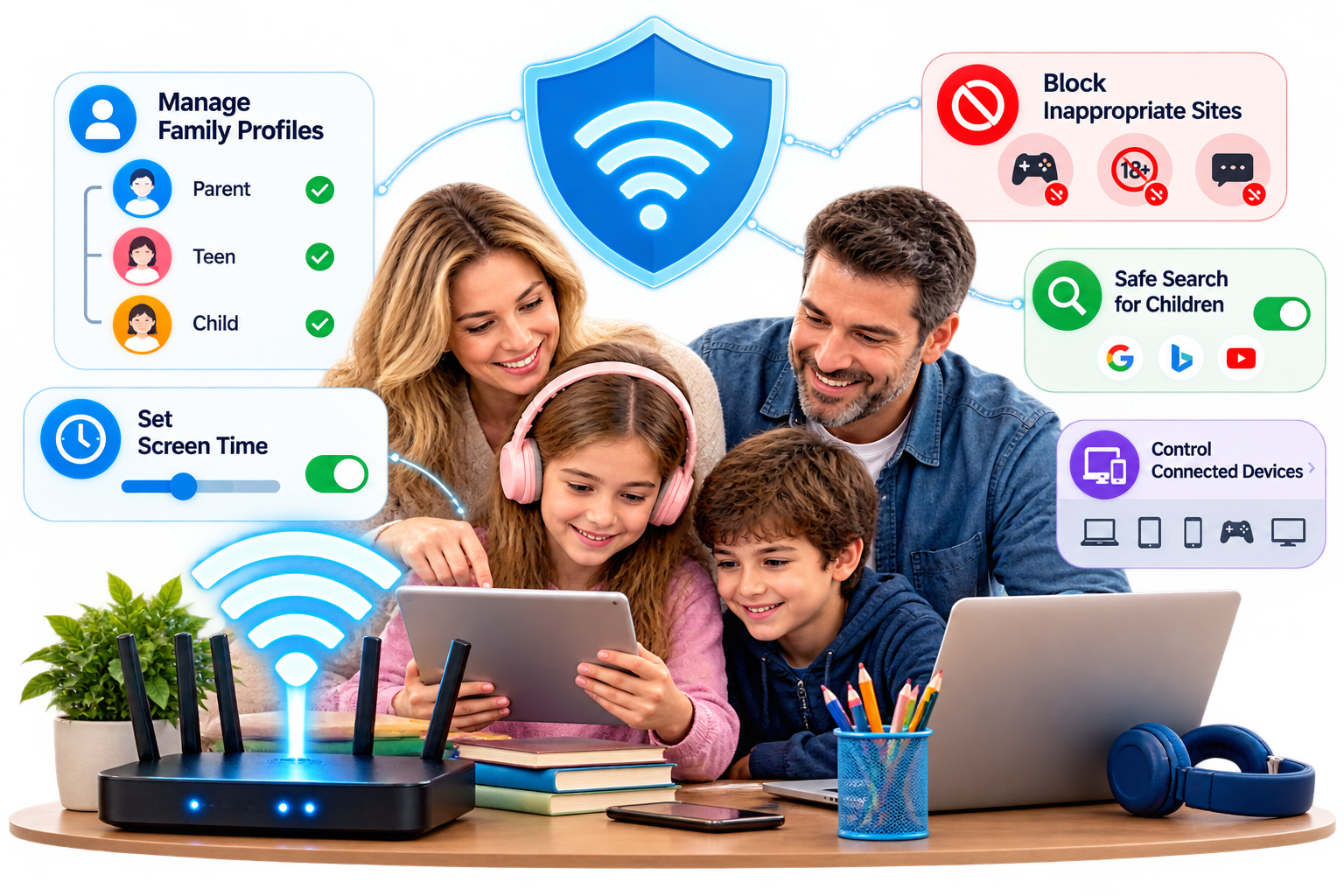

COMPARE WITH CONFIDENCE
Equipment, coverage, real-world speeds, safety and long-term value—grounded in verifiable evidence.
Start with the connectivity category. Product-specific scorecards and interactive comparison tools are being developed; they are not yet live.
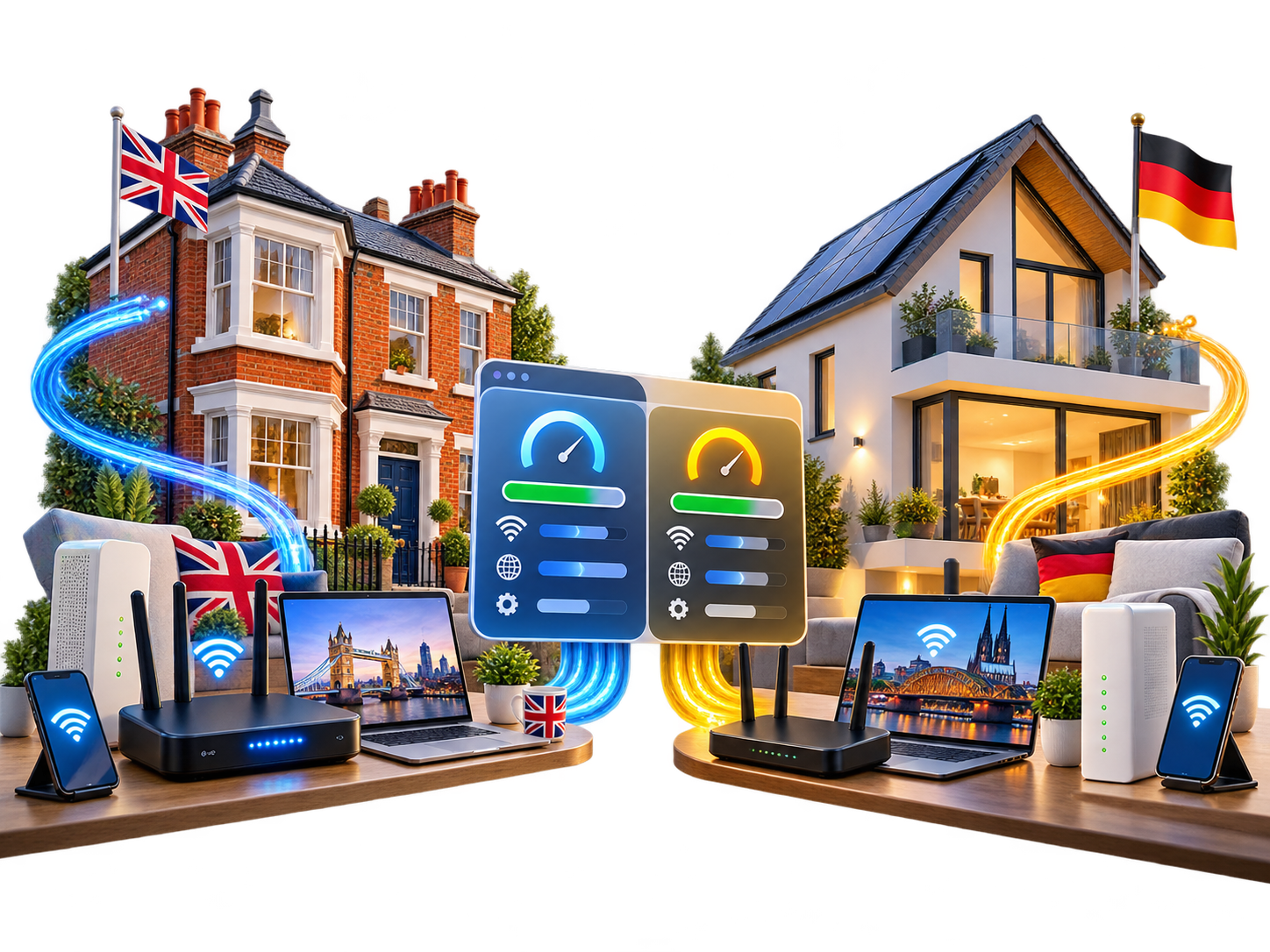 Home InternetCompare providers, connection types, plans, speed, reliability and total service cost.Begin at Step 1 →
 Wi-Fi & MeshCompare routers, mesh systems, coverage, backhaul and equipment suitability.Begin at Step 1 →
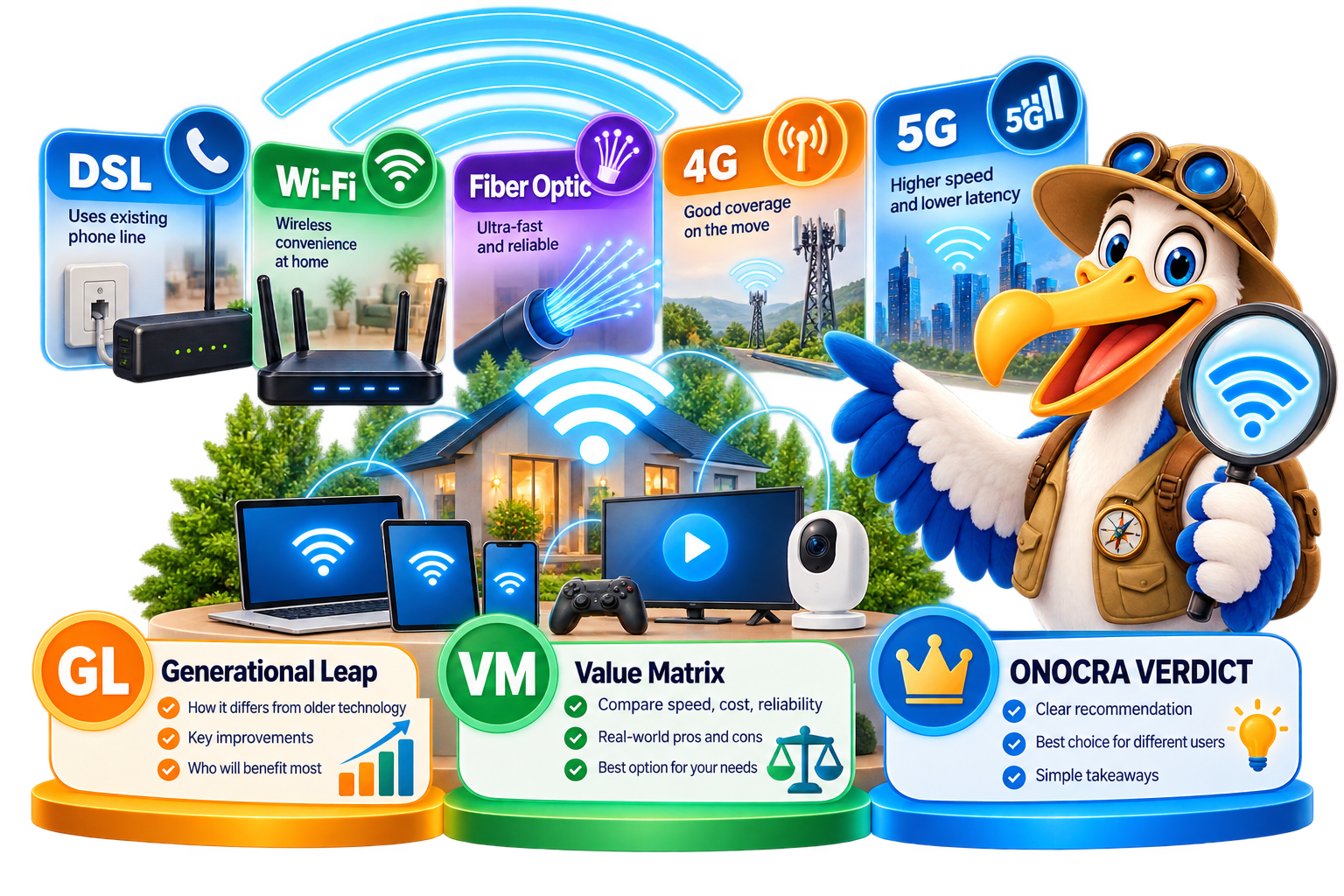 Both Internet & Wi-FiChoose the home internet service and Wi-Fi equipment together as one complete package.Begin at Step 1 →
How ONOCRA compares: We examine official specifications, independent research, everyday usability and long-term value. Our recommendations explain the evidence, limitations and trade-offs clearly.

We evaluate published evidence & we do not claim to operate a test laboratory.



Official product documents, published testing and relevant public guidance are separate forms of evidence.
 Wi-Fi AllianceWi-Fi standards and certification
 FCCUS connectivity information
 OfcomUK broadband guidance
CHOOSE WITH CONFIDENCE
Understand the difference between the service that reaches your home and the wireless network that serves your rooms.
Select your topic, then review coverage, compatibility, fees and security.
 Home InternetFiber, cable, DSL and 5G home access.Explore connection help →
 Wi-Fi & MeshRouters, coverage, access points and mesh.Explore brand resources →
Region-specific devices and ISP packages vary. We do not claim live product pricing, provider coverage or manufacturer partnerships.

REGIONAL GUIDE · US · UK · GERMANY
Regulators, retailers and internet providers play different roles. Use this guide to know where to check rules, compare products and arrange service.
| Role of Organisation / Authority | United States | United Kingdom | Germany |
|---|---|---|---|
| Regulatory authorityOfficial rules, consumer rights and public guidance | FCC Communications regulator | Ofcom Communications regulator | Bundesnetzagentur Federal network regulator |
| Equipment retailersCompare routers, mesh kits and home-network equipment |
|
|
|
| Internet providersService packages, availability and supplied routers |
|
|
|
Examples, not endorsements or live offers. Regulators do not sell equipment. Retail prices, ISP packages, compatibility and address-level availability must be checked separately; Wi-Fi Alliance is a standards and certification body.
ONOCRA ROUTES · MORE RESOURCES
Explore additional organisations and equipment beyond our featured brands. Open a group to find regional websites and related guidance.
 United StatesUnited Kingdom
Check the actual seller, product condition, warranty and regional compatibility. Marketplaces such as eBay are a separate purchasing channel.
United StatesUnited KingdomProvider availability, installation requirements, equipment supply and tariff terms depend on your address.
These are research and guide topics, not completed ONOCRA product-comparison programmes.
Read related networking guidance →External websites are independent of ONOCRA. Listings are illustrative, not endorsements, live offers or verified product recommendations. Confirm local availability and compatibility before choosing a service or device.

USEFUL NOW
We welcome feedback as we develop useful internet and Wi-Fi guidance.